0
Vista Black - Windows Vista Themes
Posted by Meo Con
on
19:44
in
WIN VISTA THEMES
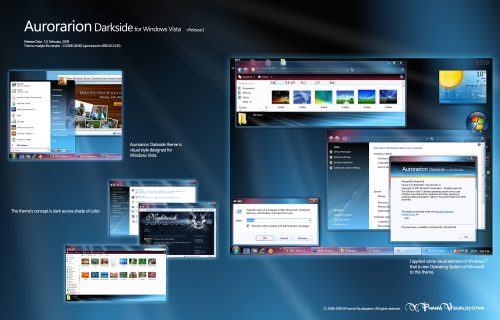
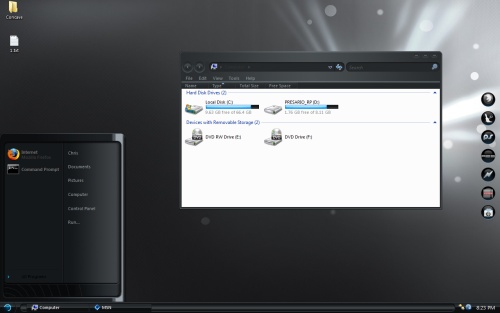
Description : The best skin in windows vista themes. People like it very much. Amazing work. Users of vista themes says: I love the way the borders dont lump up when they have focus like they do on the standard Vista skin. Love the pure white text for the title bar when it has focus too. Really like the right click menu, which looks slightly smaller than the vista right click menu which really works well.
Author : xpmania
Download : Click here

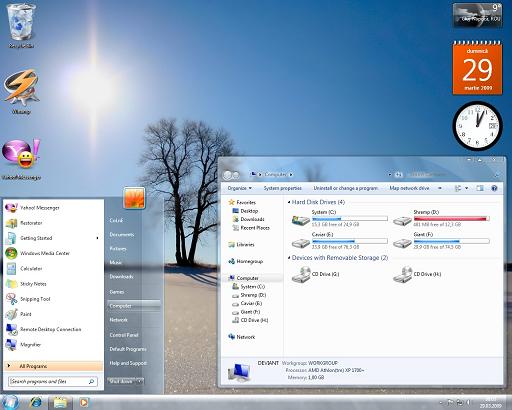
Description : A cool theme with HDD status bar, Start menu is white and transparent at the same time. The progress bar look awsome. Bundle contains theme, explorer.exe and explorerframe.dll (for the back/forward duttons).
Author Notes : Here is the new skin for Windows 7 build 7057. I have made some chanes to taskbar and start panel and fixed some minor bugs.
Author : alkhan
Download : Click here
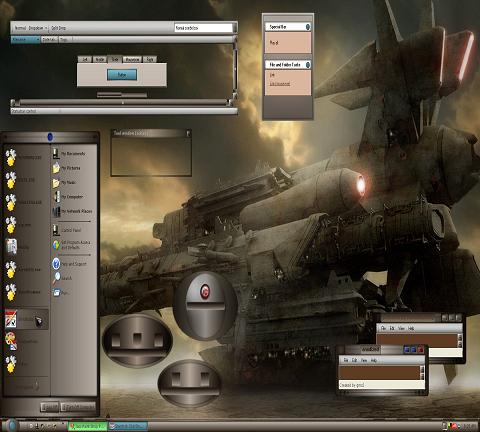
Description : Cool blind, coated a sheep with metal color. A great scene in the sea. Dark brown colors combination have been used in a blind. For XP only.
Author : wimpyiam
Download : Click here
After writing the article last week about how to add Disk Cleanup to the context menu for a drive, I received several requests for how to add another menu item for Defrag instead. With a simple registry hack we can do just that.
After manually applying or downloading the hack, you'll have a new item on the right-click menu for your drives…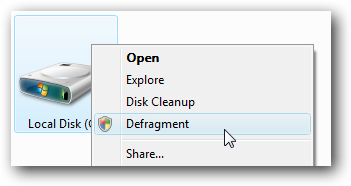
Which will start up the command-line version of Disk Defragmenter (after accepting the UAC prompt)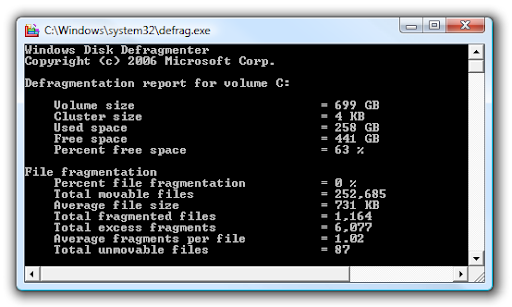
Manual Registry Hack
Open up regedit.exe through the start menu search or run box, and then browse down to the following key:
HKEY_CLASSES_ROOT\Drive\shell
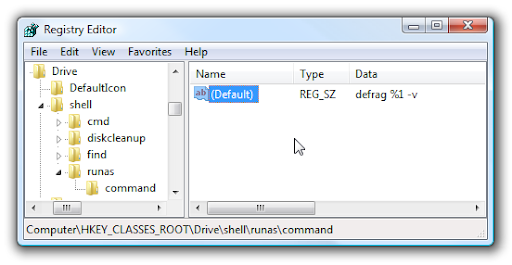
Create a new key under shell called "runas", and then set the (Default) value to "Defragment". If you want to hide this menu item behind the Shift key right-click menu, then add a new string called Extended with no value.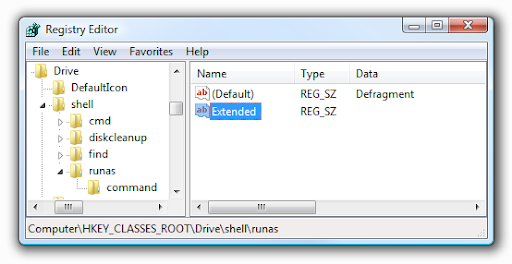
Next, you'll need to create a key called "command" and set the default value to the following, which is the command to run defrag with the default options but show verbose output.
defrag %1 -v
You can alternately choose from one of the other defrag switches here if you'd like.
Downloadable Registry Hack
Simply download, extract, and double-click on either AddDefragToDriveMenu.reg (for the regular menu) or AddDefragToExtendedDriveMenu.reg (to hide behind the Shift key). There's also an included removal script that will remove either one.
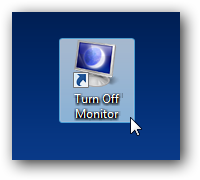
First we'll show you how to simply power off the monitor, and then how to both lock and power it off.
Create a Shortcut to Turn Off the Monitor
To create this shortcut, we'll first need to grab a tiny multi-purpose utility called NirCmd from the great folks over at NirSoft. This Swiss-army knife tool can do an amazing array of tasks, including powering off the monitor. All we really need to do is create a shortcut to it.
Right-click anywhere on the desktop and choose New \ Shortcut: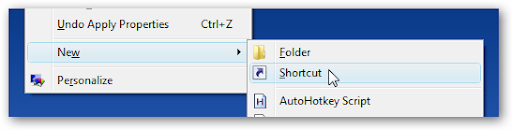
Then you'll want to browse to the location where you saved the nircmd.exe file, and add the following arguments:
"C:\path\to\nircmd.exe" cmdwait 1000 monitor off
Make sure the path has quotes around it, and then you add the extra arguments, which will wait 1 second before powering off the monitor (otherwise Windows might misinterpret your last keystroke and wake back up).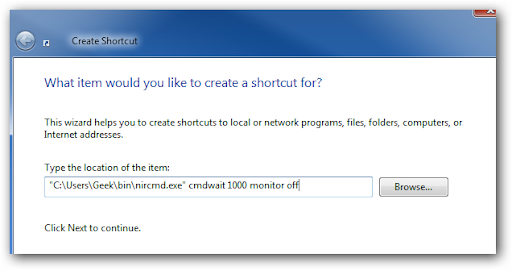
Next you can go into the shortcut properties and assign a shortcut key, and then click Change Icon to pick a better one than the default.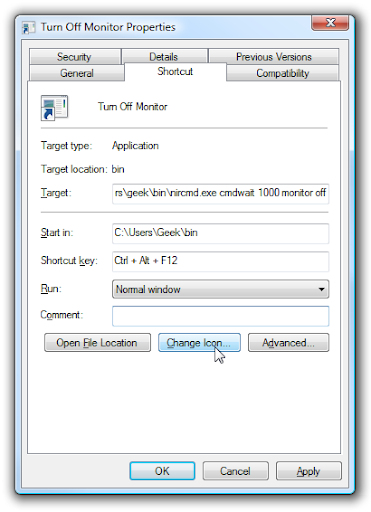
In Vista, at least, there's a great icon for turning off the monitor… pick the somewhat ugly one from the list below: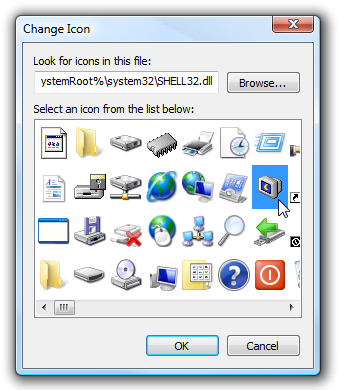
And when the icon actually shows up, it's nice and shiny. Of course you are free to pick your own icon instead.
Lock the Workstation Too
For extra credit, you can create a shortcut that both locks the workstation as well as turns the monitor off. Unfortunately the Nircmd way involves more steps than necessary in Vista (in my testing, at least), so I've created a tiny executable called LockAndPowerDown.exe that will do both in one step.
To install it, simply download and extract the executable, and create a shortcut to it just as you did in the step above. To find the same icon, click on Change Icon, and then paste in "C:\Windows\System32\shell32.dll" into the browse box.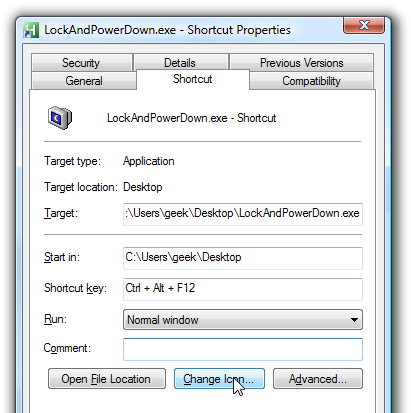
The application is written in AutoHotkey and the source code is included in the download file. Enjoy!
Like most Microsoft operating systems, Vista uses the 'kitchen sink' approach, bundling more software and applications than you are ever likely to use. Let's look at streamlining your Vista PC a bit and saving some drive space by removing some of these unnecessary applications.
To remove unwanted Vista components:
Go to 'start/control panel/programs/uninstall a program'.
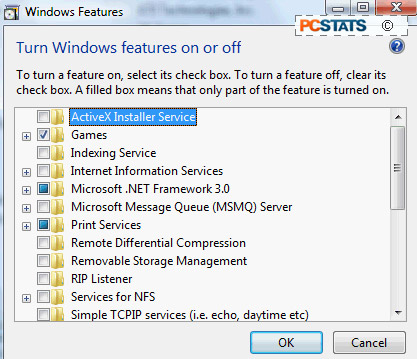
In the sidebar, click 'turn windows features on and off'.
The checkboxes list optional features that can be added or disabled. Good options for removal include games, DFS file replication service, windows meeting space and tablet tools.
Copyright © 2009 Windows Vista tutorial, Internet tutorials All rights reserved. Theme by Laptop Geek. | Bloggerized by FalconHive.